The Union function, available at Vector->Geoprocessing->Union, provides an algorithm that checks overlapping features within
an input layer and creates separate features for overlapping and non-overlapping parts. The area of overlap will create as many
identical overlapping features as there are features that participate to that overlap.
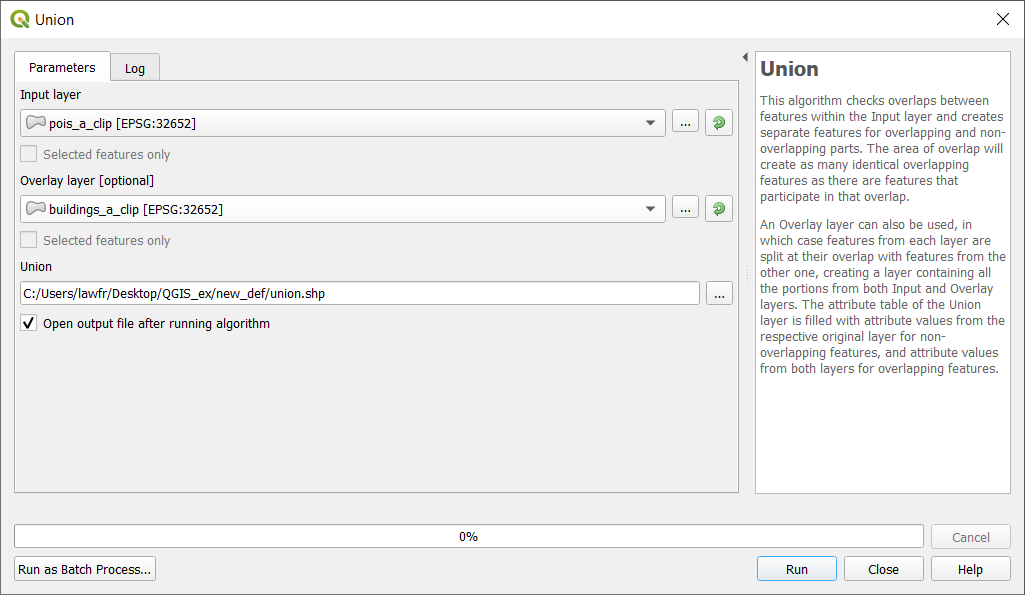
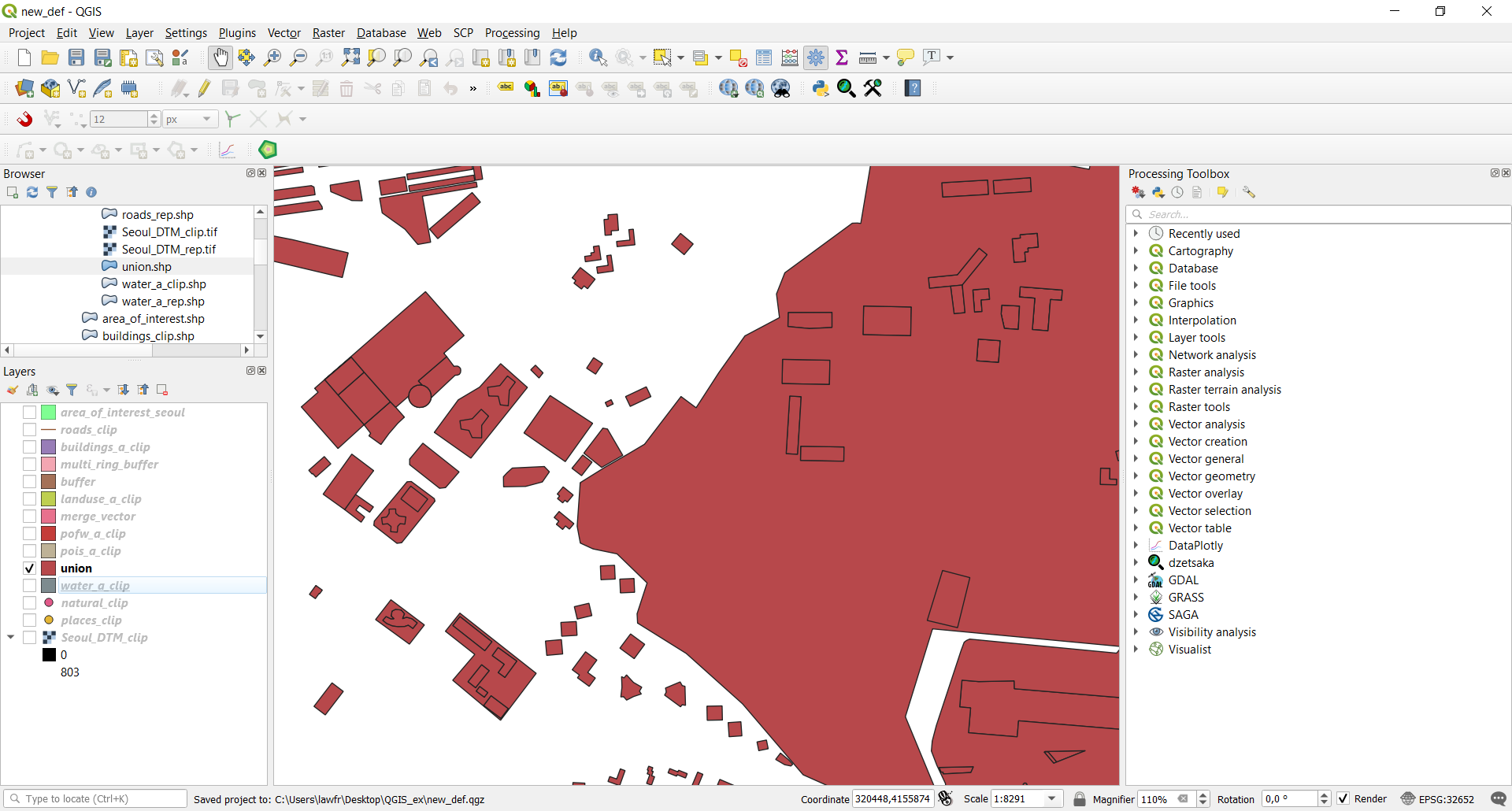
In this exercise, we will perform an Union between the pois_a_clip layer (points of interest) and the buildings_a_clip layer,
so that we will get a layer representing both residential buildings and interest/public buildings. The input parameters are:
Input layer: pois_a_clip layer
Overlay layer: buildings_a_clip layer
Union: the path and the name of the output vector layer. Note that if left empty a temporary layer will be created
We can now look at the Intersection function. It is available at Vector->Geoprocessing Tools->Intersection, and it provides a function
that extracts the overlapping portions of the features of two layers and assigns these portions the attribute of both layers.
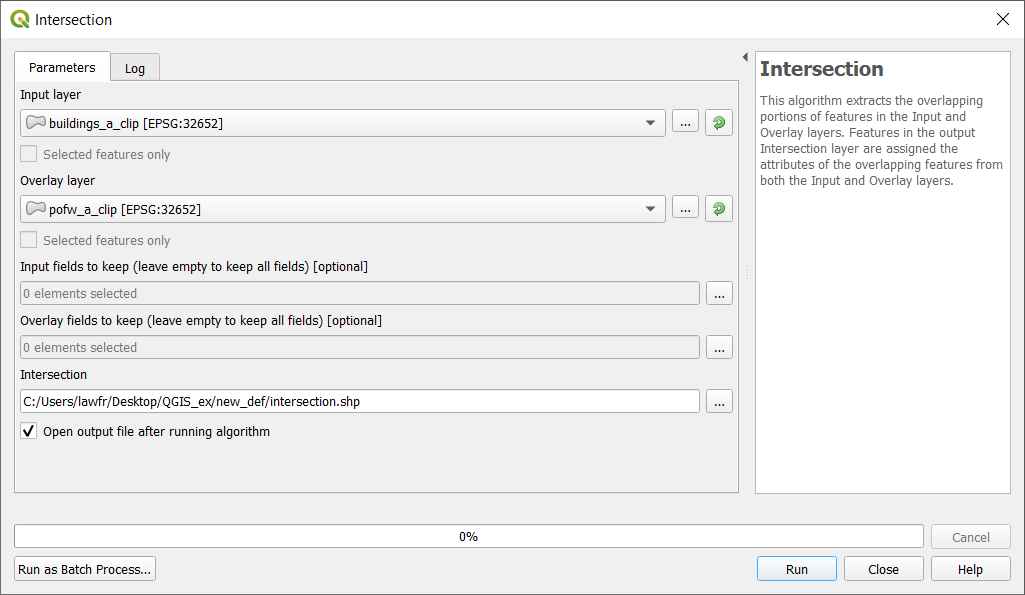
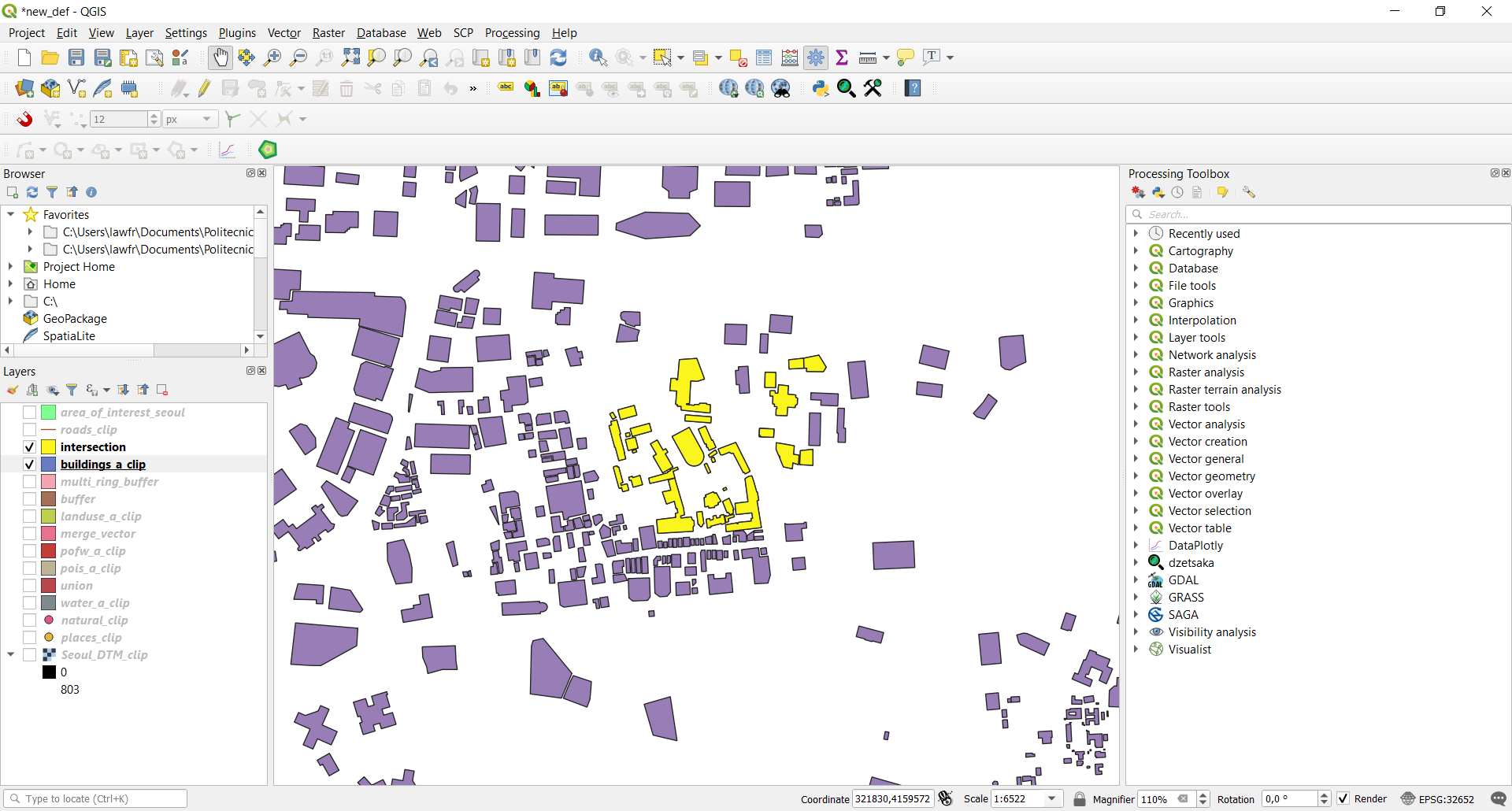
We use it to see which buildings are also religious buildings. The input parameters are:
Input layer: buildings_a_clip layer
Overlay layer: pofw_a_clip layer
Intersection: the path and the name of the output vector layer. Note that if left empty a temporary layer will be created
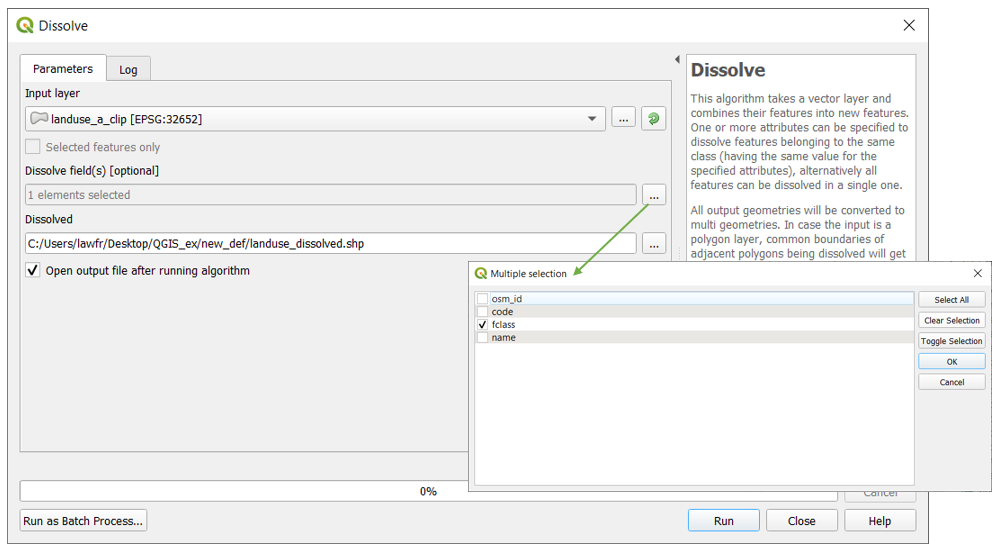
We will now use the Dissolve function applied to the landuse_a_clip layer. The Dissolve function, available at
Vector->Geoprocessing tools->Dissolve, provides an algorithm that takes a vector layer and combines their features
into new features. One or more attributes can be specified to dissolve features belonging to the same class (having
the same value of a specific attribute); if no attribute is selected, all features will be dissolved into a single one.
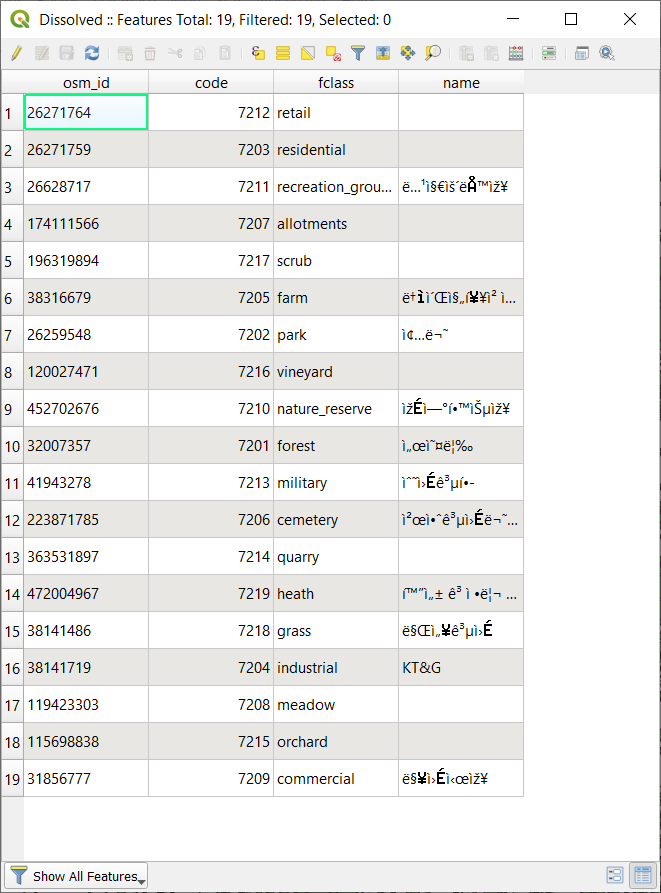
We will create a new landuse layer that has as many features as the different types of land use. The input parameters are:
Input layer: the landuse_a_clip layer
Dissolve fields: click the icon on the left and select the “fclass” attribute
Dissolved: the path and the name of the output vector layer. Note that if left empty a temporary layer will be created
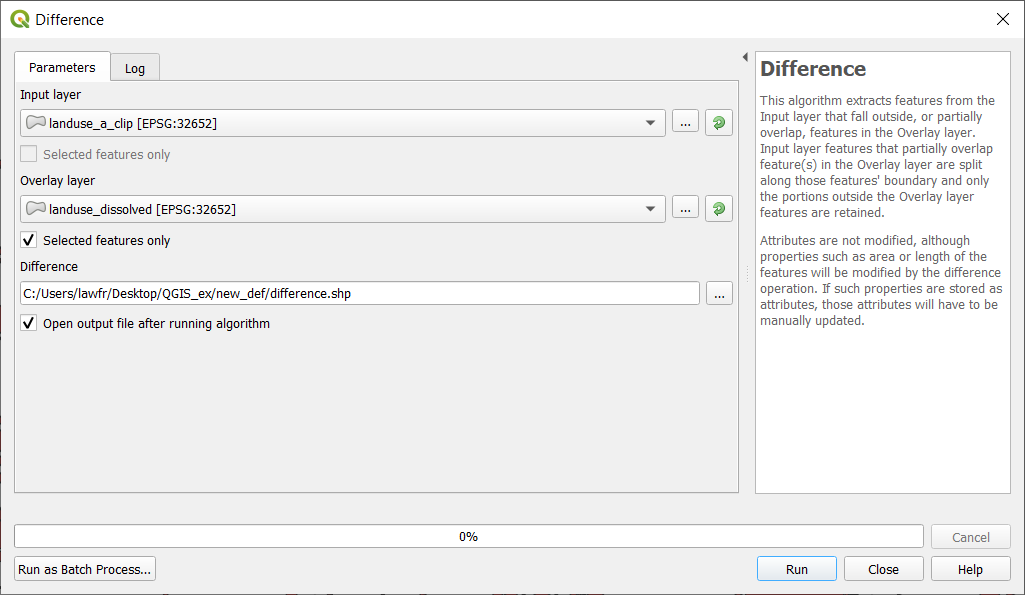
We can now use the newly created landuse_dissolved layer to perform a Difference operation. Difference is a function available at
Vector->Geoprocessing Tools->Difference, that extracts features of an Input layer that fall outside features in the Overlay layer
(totally or partially). If a feature of the Input layer partially overlaps a feature of the Overlay layer only the portions outside
the Overlay layer features are retained. We will use it to filter out all the natural land use leaving only the industrial and urbanized ones.
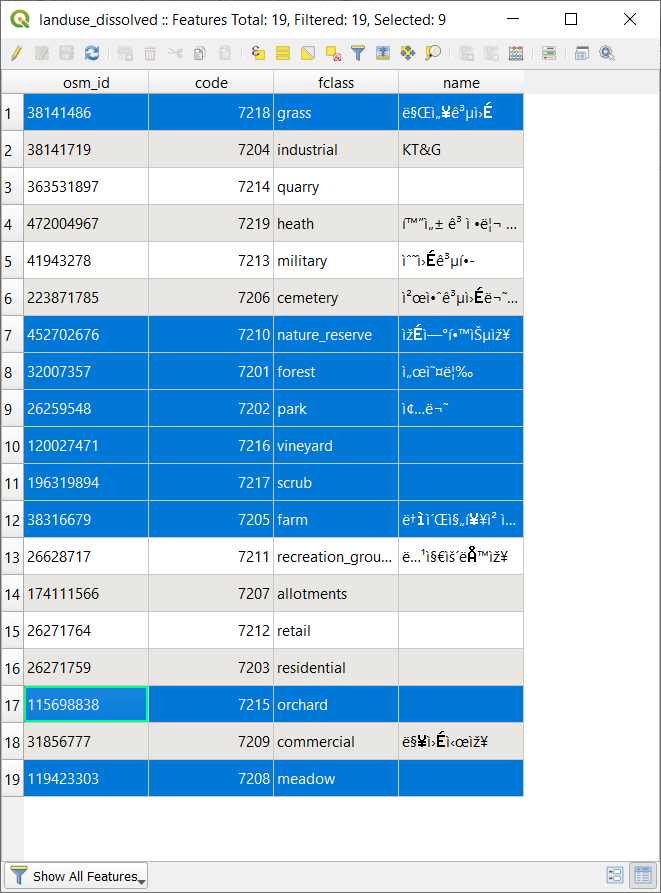
To do so, first, we have to select the natural land use features:
Right-click on the landuse_dissolved layer on the Layers panel
Open its Attribute table
Manually select the features having natural land use classes (like the following ones) by holding Ctrl and clicking on
the row number on the left
heath
forest
scrub
orchard
natural_reserve
farm
meadow
vineyard
grass
Now that we have selected those features, we can go on with the Difference operation. The input parameters are:
Input layer: the landuse_a_clip layer
Overlay layer: the landuse_dissolved layer, but be sure to check the “Selected features only” checkbox
Difference: the path and the name of the output vector layer. Note that if left empty a temporary layer will be created
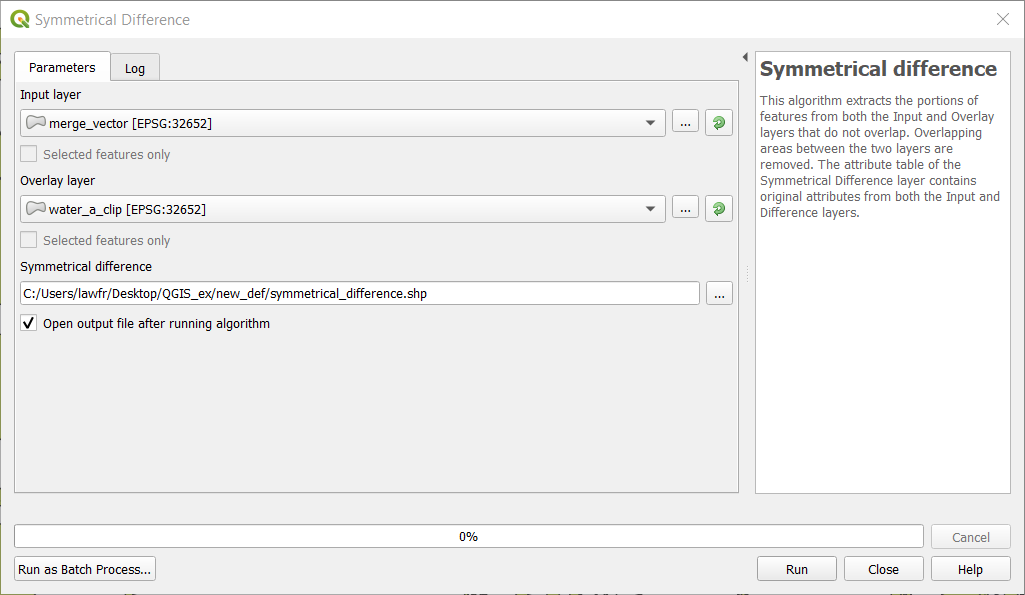
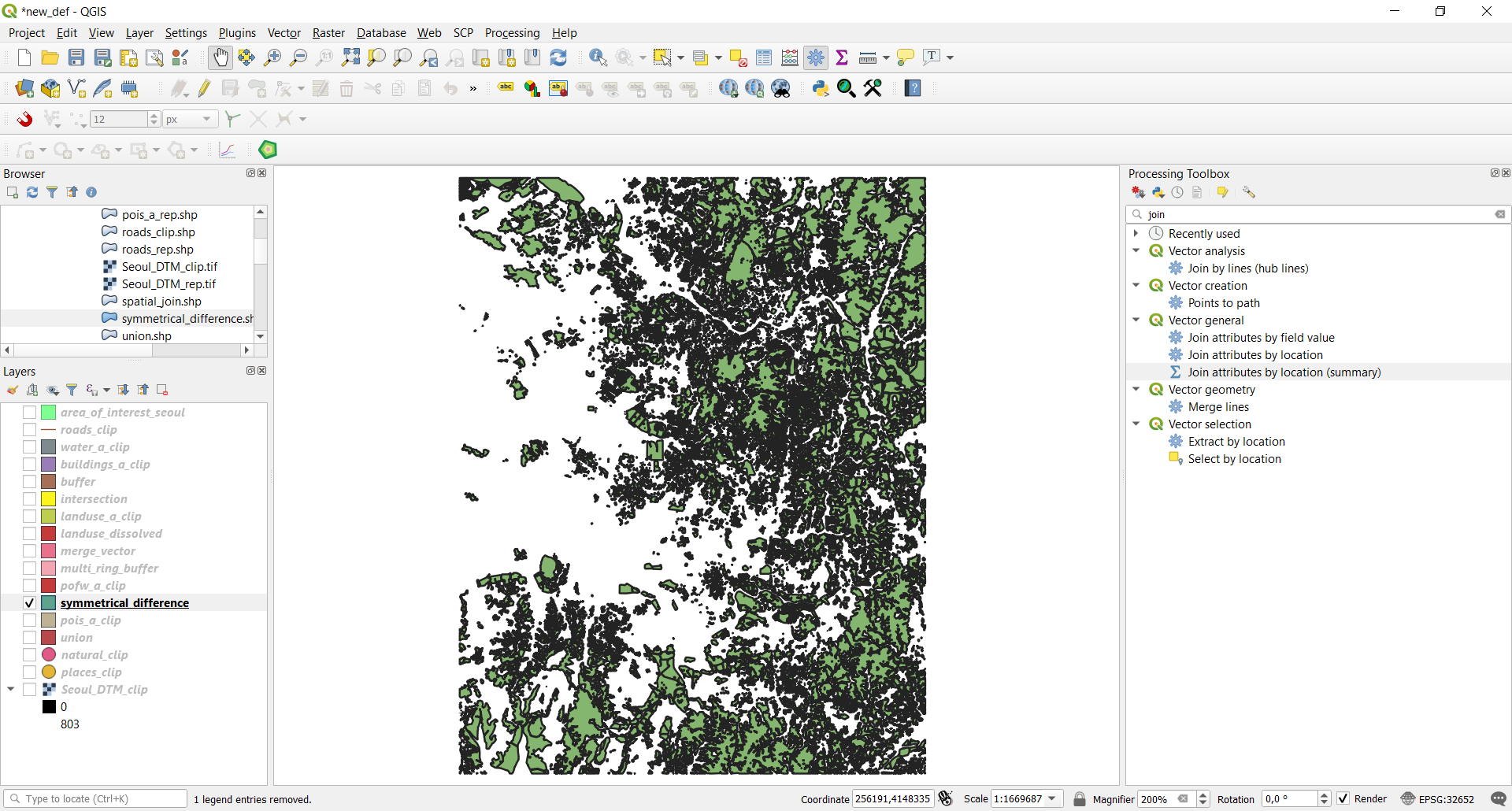
The Symmetrical difference, available at Vector->Geoprocessing Tools->Symmetrical Difference, provides a function that extracts
the portions of features from both the Input and Overlay layers that do not overlap. The attribute table of the Symmetrical Difference
result layer contains original attributes from both the Input and Overlay layers.
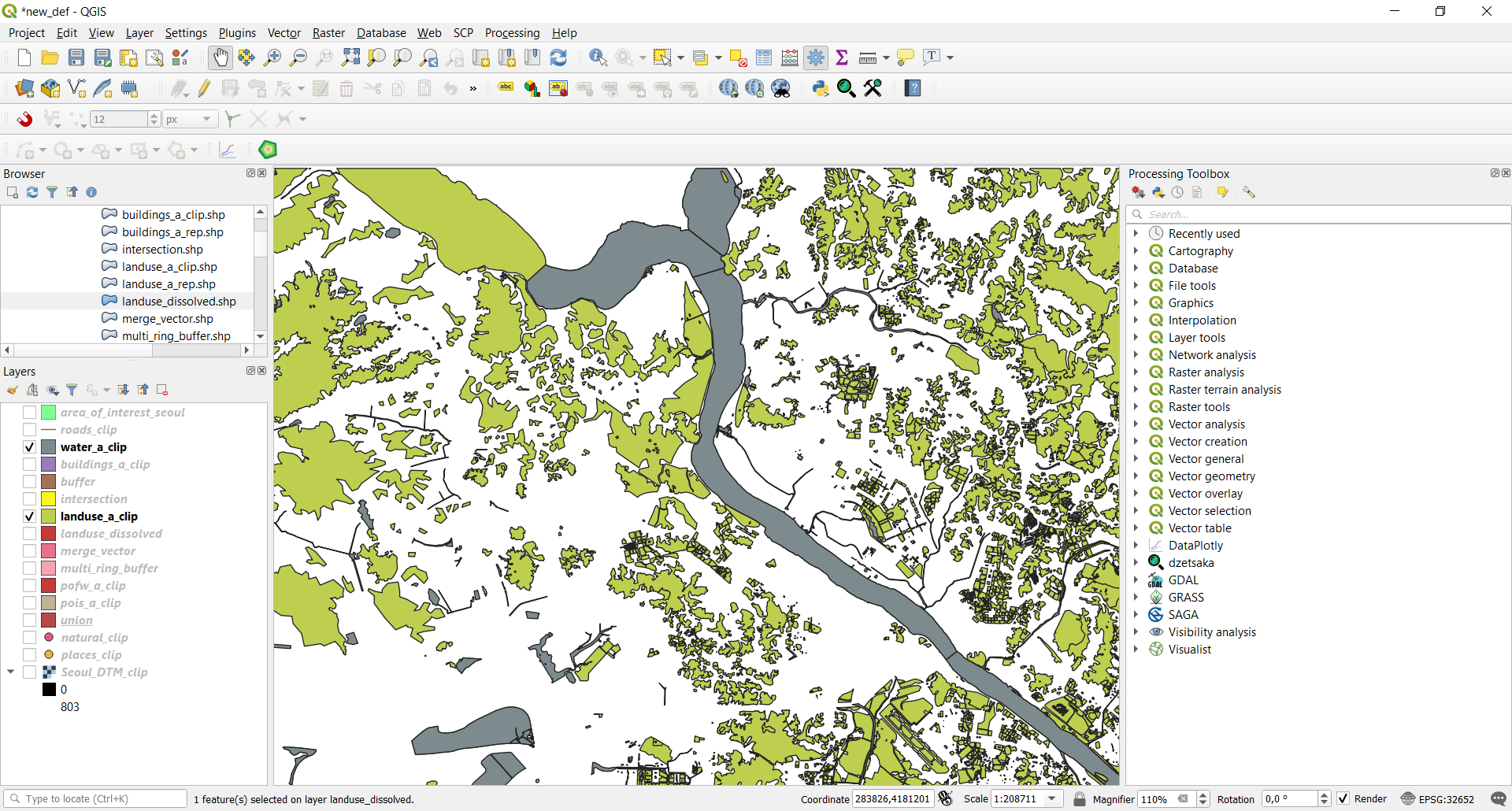
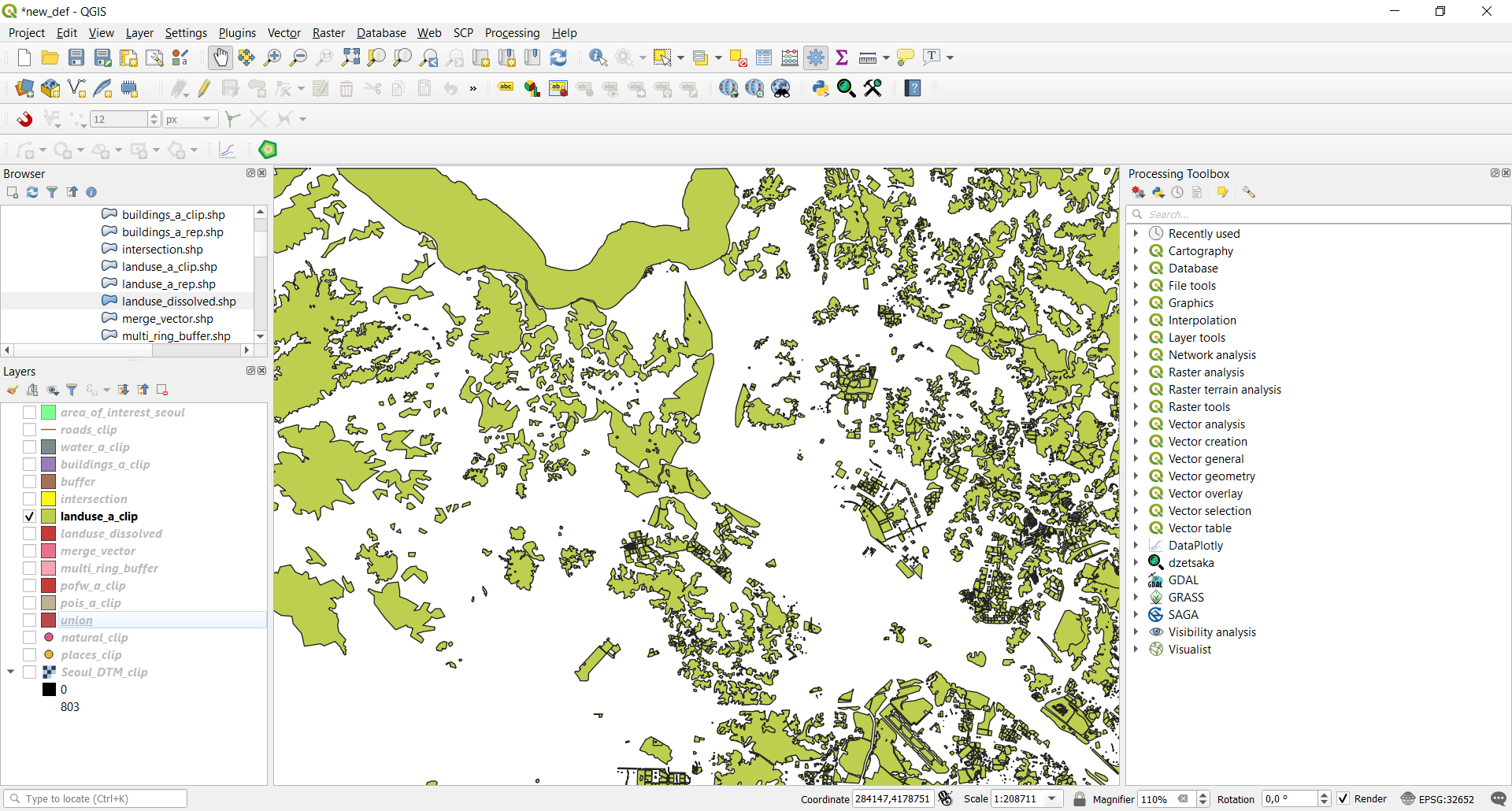
If you look at the landuse_a_clip layer, you will see it has some portions that overlap with water features:
Fig. 3.3.5.1 Water bodies (gray) overlapping landuse features (green)
As you saw with the Intersection function we can find the buildings that are also religious places. We will now use the
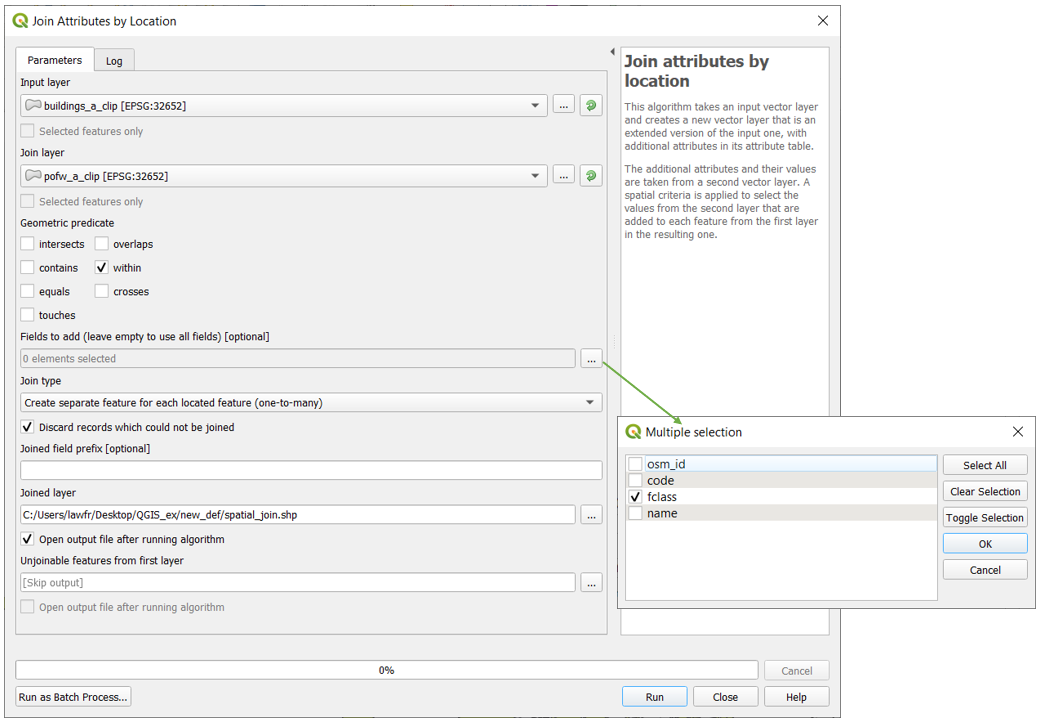
Join Attributes by Location function (generally known as Spatial Join) available at Vector->Data Management Tools->Join Attributes by Location,
to extend the previous analysis. The Join attributes by location is a function that takes an input vector layer and creates a new vector
layer that is an extended version of the input one, with additional attributes in its attribute table. This additional attributes and their
values are taken from a second vector layer applying spatial criteria to select the values from the second layer that are added to each
feature from the first layer in the resulting one. In this way we could add the attribute that specifies the religion practised in a
particular building; the input parameters are:
Input layer: the buildings_a_clip layer
Join layer: the pofw_a_clip layer
Geometric predicate: within
Fields to add: click on the icon on the left and select the “fclass” attribute
Join type: take attributes of the first located feature only (one-to-one)
Tick the “Discard record which cannot be joined” option
Joined layer: the path and the name of the output vector layer. Note that if left empty a temporary layer will be created
Fig. 3.3.6.1 Join Attributes by Location function window
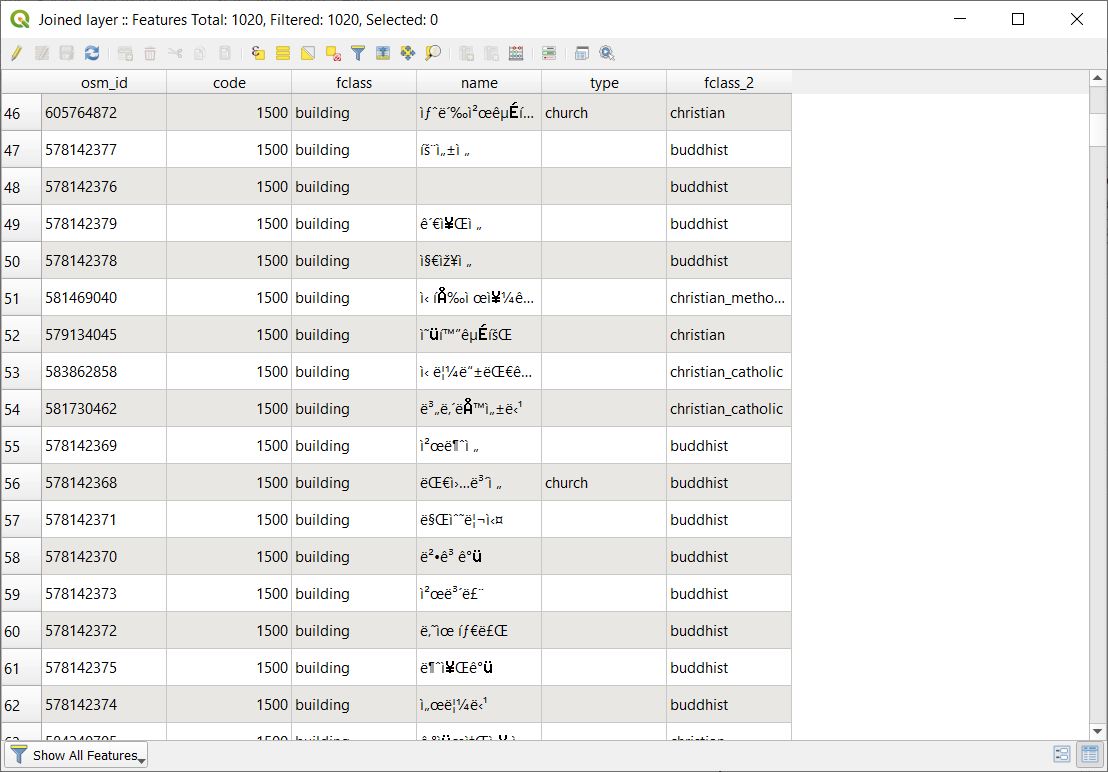
If you now look at the attribute table of the newly created layer, you will see a new attribute (fclass_2)
that represents the religion practiced in that building.
Note
The Join Attributes by Location function, specifying the “intersects” predicate, also translates the “Identity” function of ArcGIS